LinkedIn Autopost Configuration
In this guide, we'll briefly guide you through configuring EasyDiscuss LinkedIn Autopost. There are several simple steps available in this section.
Step 1 - Navigating to LinkedIn Autopost Settings
On the sidebar menu at EasyDiscuss's settings, you should be able to see a menu called Auto Posting. Click on it to display the LinkedIn autopost settings.

Step 2 - Copy the API Keys
Next, copy the Client ID and the Client Secret keys from your LinkedIn Application which you have created before and paste it in the EasyDiscuss LinkedIn autopost configuration.


Step 3 - Store the Configuration
Click on Save button to store the configuration.
Step 4 - Authorization
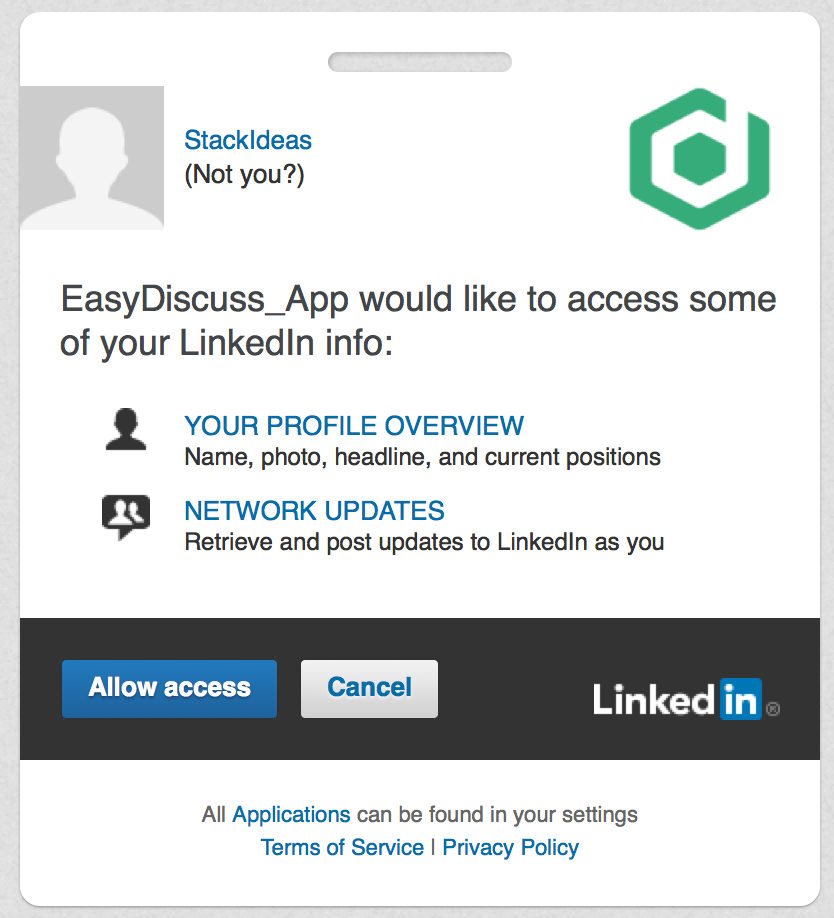
Next, click on  button to authorize the access between your site with LinkedIn. Then, click on Allow access button to authorize it.